Wednesday, August 26, 2009

QuickFile for Outlook Tip: Viewing Inbox emails only when you need them

The Inbox works as a To-Do list for most of us. Having too many emails in the Inbox can be overwhelming and distracting. You can use QuickFile PRO's Defer function to make Outlook only show emails when you actually need them.

I can show you how this works with my morning email routine. I don't want emails to take over my day so I have scheduled 10.30 am as my email processing time. BUT some emails need my immediate attention... as soon as I get into the office.

Here's what I do...

I download my emails when I get into the office. I then step through the emails one by one.

If an email needs urgent attention (sales emails), I respond. If it is something that someone else in my team can respond to, I forward it on.

Otherwise I click the Defer button (which QuickFile PRO adds to Outlook) and defer the email to 10.30 am.

The deferred emails are moved out of my Inbox... so they no longer distract me.

At my preset time of 10.30 am, my deferred emails reappear in my Inbox and I go through them in more detail.

This process (and the Defer button) ensures that urgent matters get attended to... without letting emails completely take over my morning.

How to use the Defer Button

The Defer button is added inside Outlook for you if you install QuickFile PRO for Outlook.

1. Select the email that you want to Defer.
2. Click the Defer button on the QuickFile toolbar (which is displayed inside Outlook)
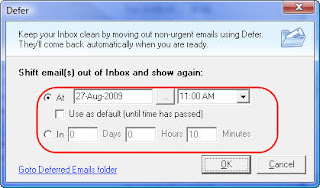
3. Use the screen to enter when you want to see the email again. You can either enter an exact time (e.g. 10 am) or you can choose to look at the email after a set duration (after 30 minutes)
4. Click OK.

The email will be moved out of your Inbox (and will reappear at your set time).

Looking at Deferred Emails (before they come back to the Inbox)

If you need to look at a deferred email before it comes back to the Inbox (maybe you finished your other work or a meeting got changed):

Click the Defer button on the toolbar.
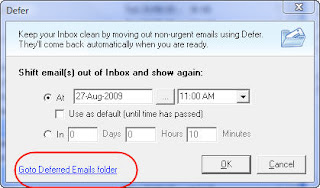
Click the Goto Deferred Emails folder link.

The Defer function has proven to be useful to many QuickFile users. Try it out today.

If you're not a QuickFile user, you can learn more about QuickFile PRO for Outlook here.

Printing Blank Calendars from Outlook

It is almost the end of August... 4 more months to the end of the year. I have been working with my team on planning our main projects for the rest of the year. The discussion process was much easier with a pencil, an eraser and a blank printed calendar for each remaining month of the year.

Here's how you can print out blank monthly calendars from Outlook.

Create a new Calendar Folder
  • Go to your Inbox.
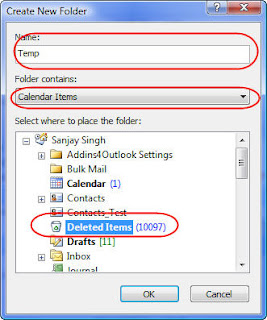
  • Click File-New-Folder to display the New Folder Dialog
  • Enter a suitable name (I used Temp)
  • Change Folder Contains to Calendar Items
  • Select a folder where you want the new Calendar to be created. (I selected the Deleted Items folder. I am only going to use this folder for printing i.e. I am not going to enter any real appointments in it)
View the new Folder
  • On the main menu click Go-Folder List.
  • Select the Folder from where you created it (under Deleted Items for me)
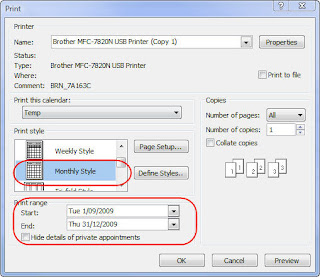
  • Click File-Print
  • Change the Print Style to Monthly
  • Change the Date Range to the range you want to print.
  • Click Preview
  • Click Print
If you created the folder in the Deleted Items folder, you're done. Otherwise you need to delete the Temp calendar folder that you created.

Does this tip work for you. Do you have other better methods. Tell me what you think by leaving a comment on the blog.

Wednesday, July 15, 2009

How to Write Emails that Get FASTER Responses to ALL your concerns/questions

Do you find that when you send out emails, people only send partial responses? Here is a easy tip that makes it easier for the respondent to address all your concerns AND gets them to address at least some of your issues faster AND also makes it easy for you to follow up.

The Secret… make one email about one topic/project only.

Why does it make it easier to get a response to all your questions?

Most people use their emails like a To-Do list. It feels great to knock a few things off that ever-growing list. So if you send an email with too many things in it, the respondent will reply and deal with either the most important or (more likely) the easiest questions. The email is then considered dealt with… they know you’ll email him again if you really need answers to the other questions.

Why does it get them to respond to at least some of your questions faster?

Other people will look at your email and think… It will take time to answer all those questions… I’ll respond later. They may procrastinate for a long time before getting back to you.

On the other hand, if you had separate emails for each topic… you probably would have received a response to things that could have been answered immediately. (We all want to knock things off that To-Do list)

Benefit for the person you are writing to: It gives them a much better way of managing To-Do items that relate to you.

Why is it easier to follow up?

If you have a separate email for each topic and use Outlook flags, Tasks or some other method of knowing what still needs to be followed up on… it’s easier to mark topics as completed as you get responses… and you know exactly what you still need to follow up on.

It’s also easier to resend an email that has not been responded to at all (than to forward and modify a partially responded-to email)

Try out this simple tip… you’ll find a big change in responses. I have.

Do you have your own ways of getting faster and complete responses? Tell me what you think by leaving a comment on the blog.

Before I forget… we have a great productivity booster announcement next week… if you’re not part of our email newsletter (which is different from the blog newsletter), sign up at www.standss.com

Wednesday, July 8, 2009

STOP Getting Spammed by Your Own Email Address

Over the last few weeks I have noticed that spammers have started more and more spam email from YOUR/MY email address. The email is from YOU and also to YOU. Chances are you have your email address white-listed . Here's a little trick I use to stop these emails from getting into my Inbox.

First why would you email yourself…last week I wrote a tip on how you can stay organized by emailing yourself… that could be a reason.

Here's how you can move the spam emails out of your Inbox but still keep the real emails you have emailed yourself.

Decide on a few characters that you will type in the Subject of every email that you send yourself. Keep it simple as you want to be able to type these characters from your BlackBerry etc as well. Use something like QAZ or whatever is easy for you to type.

Any time you send yourself an email type those characters in the Subject e.g. Instead of "Pick Stuff from Supermarket", you would need to type (say) "QAZ Pick Stuff From Supermarket".

Now setup Outlook.

1. Add your own email address to the Safe Senders list in Outlook (this is probably already done)

2. Create a Rule in Outlook so that all emails from your email address get moved to your Junk Mail folder, except those with your special tag in them (QAZ in the example above)

Click Tools - Rules and Alerts
Click New Rule to display the Rules Wizard

Click Move messages from someone to a folder.
Click people or distribution list. Enter all your own email addresses in the From field and click OK.
Click specified folder. Use the screen that comes up to select the Junk E-mail folder and click OK.
Click Next
Click Next

Tick except if the subject contains specific words.
Click Specific Words. Enter the tag (QAZ in example) and click Add. Click OK

Your Rules should look something like the following:

Click Finish.

Now anytime Outlook receives an email from you, it will get moved to the Junk Emails folder, EXCEPT when they have your special tag. EASY!

Does this tip work for you. Do you have other better methods. Tell me what you think by leaving a comment on the blog.

Related Links:
Fine-Tuning Spam Filtering in Outlook

Thursday, June 25, 2009

Make sure the Subject of your email is right for the recipient

There was a big jump in sales for SendGuard over the last month so this month's product tip is for SendGuard.

We did a survey last year to see what annoyed people about emails they received. Number 1 on the list was MISLEADING SUBJECTS… and most of the time the misleading subject was an accident.

First an explanation… a common cause for incorrect Subjects is… I need to send an email to someone who is not in my contact list… I find an email from them and click Reply… I type my new message but I FORGET TO CHANGE THE SUBJECT.

The contents of my new email have absolutely nothing to do with the original Subject!

How does SendGuard protect you from this… anytime you do a reply on an old email, SendGuard will ask you if you want to change the Subject.

How old is an old email… that's up to you. You can decide on how old the email has to be before the prompt will be triggered. SendGuard's default is 28 days and that works well for me.

To turn on this feature and/or to change the number of days:

Go to your Inbox.
Click Tools-Standss-SendGuard-Settings.
Click on the Subject Guard tab.

Change the appropriate settings and click OK.

Do you think this is a useful feature? Let us know by leaving a comment on the blog.

Outlook To Do Lists for the Disorganized: Use Emails instead of Tasks

Need to make sure that you get something done… EMAIL YOURSELF! This works much better for me then putting it on a Task List. Why? Like many people my Inbox acts as my real (or at least more immediate) Task List.

Here are some ways to get the most out of this super easy tip.

1.
Basic Way: Just Email yourself when you need to remember to do something.

2.
Need to follow up on an email that you are sending out to a client: BCC yourself on the email and a copy will end up in your Inbox.

3.
From your BlackBerry or other email-enabled phone: This is my FAVOURITE. It means that I can update my To Do List from anywhere… I'm at the supermarket and remember that I need to call a client on Monday… easy… I create and send a email from my phone… and I can get back to chasing my 4 year old down the candy aisle.

Did you find this tip useful? Do you have your own creative ways of applying this tip. Leave a comment on the blog.

Other blog for this week:
Make sure the Subject of your email is right for the recipient

Wednesday, May 27, 2009

Use SendGuard for Outlook to avoid sending emails to the Wrong People

In my earlier post Why and how you may want to turn off Auto-Complete I wrote about how someone accidentally leaked confidential details to a New York Times reporter. If you deal with a lot of confidential information, here's another way you can make Outlook warn you when you send out emails.

SendGuard for Outlook will prompt you when you send out an email to anyone (or to selected recipients).

Assuming that you actually look at the message, instead of blindly clicking Yes, this simple prompt could save you a lot of embarrassment.

Do I use this feature myself? No.. The majority of the emails I send don't really have confidential information… I still use SendGuard for Reply and Reply/All warnings, missing attachment warnings, Subject Warnings and Clean-Up etc.

Your situation may be different if you send out a lot of confidential emails… still having the message come up for all emails may be a bit annoying.

In that case, you can also configure SendGuard to only prompt you on emails sent to particular people (for example your boss or your most important clients... or news reporters).

Go to your Inbox.
On the main menu, click Tools-Standss-SendGuard-Settings.

Select the Send Confirm tab.
Click Display message for only these email addresses.
Click Add and use the screen that comes up to add an email address. Repeat for as many addresses as you need to add .

Your criteria for choosing people to add to the list should be:

1. People whose emails must be worded correctly (e.g. important clients)
2. People to whom you don't want to accidentally send the wrong emails

Do you find this feature of SendGuard useful? Tell us what you think by leaving a comment.

Related Posts:
Why and how you may want to turn off Auto-Complete?