Wednesday, April 7, 2010
Outlook4Business Blog has moved + New Outlook Articles (on New Blog)
Wednesday, February 24, 2010
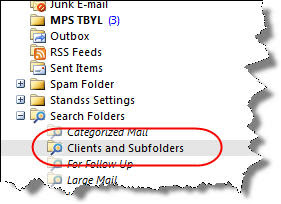
Showing the number of Unread Emails in an Outlook folder AND it’s subfolders
- Go to your Inbox.
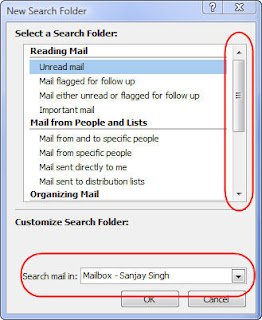
- Click File-New-Search Folder

- Scroll down the list and select Create a Custom Search Folder.
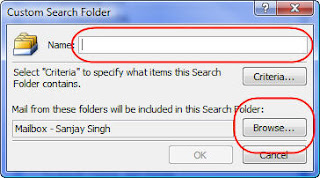
- Click Choose... to display the Custom Search Folder Screen.

- Enter a suitable name (e.g. All Client Folders)
- Click the Browse Button.
- Untick the main data folder from the top and just select the folder that you are interested in. Make sure that Search subfolders is ticked.
- Click Ok, click OK and click OK again to return to your Inbox.

Standss/Addins4Outlook is now a Microsoft Gold Certified Partner
Tuesday, December 8, 2009
Holiday Tips, Thank You & Children’s Project
Sending out Invites, Greetings & Newsletters via Email, Fax or Post
Tuesday, October 20, 2009
Big Update to QuickFile
- NEW! (PRO Version) Process Sent Items for unfiled emails sent using Blackberry Phones, Outlook Web Access, etc.
- Emails that are sent from outside Outlook using Outlook Web Access or BlackBerry (synchronized with Outlook) does not get filed using Send&File. This new feature now allows you to process your Sent Items to highlight these unfiled emails and also provides with an easy step to file it at the same time.
- NEW! NetDocuments icons for the folder
QuickFile now displays the NetDocuments folder with the NetDocuments icon on it to make it easy for users to distinguish it from normal folders. - NEW! Supports SendTo Mail recipient
Right-Click on a file and SendTo -> Mail Receipient. Now QuickFile Send&File is supported when emailing using this option. - NEW! QuickFile also supports filing on the On behalf Email Address
When an email is sent on behalf of someone then QuickFile will file that email with respect to the person it was sent on behalf of. Previously QuickFile did filing with respect to the person who sent the email. - Bug Fix: Settings screen: In Data files tab, if selected Stores is selected, open settings screen click OK, all the selected stores becomes un-ticked.
- Bug Fix: Received Date changed for emails when filing to a public folder
- Bug Fix: Go to Tasks -> View by Categories then sort by subject. A selection change error occurred
- Bug Fix: QuickFile ->search for something that does not exist in choose another folder -> click new folder button -> now click cancel on the new folder form -> Runtime error 5 occurs and QuickFile crashes
- Bug Fix: Use QuickFile to file a PostItem. the recent folder is updated but the shortcut does not get updated.
- Bug Fix: When you do QuickFile on an email, then change the email address from the drop-down on the QuickFile form and file the email. The one-click shortcut is updated on the default email address but not on the changed email address that the user picked.
Monday, October 19, 2009
URGENT Email Virus Alert
A new setting file for the ***@*** mailbox has been released.
Or
Microsoft Outlook Notification for the ******.******@*****.be
If you received the above email or anything similar DO NOT CLICK ON THE LINK IN IT!
Turns out that the email contains a link to a file which is a Trojan that disables firewalls, steals sensitive financial data (credit card numbers, online banking login details), makes screen snapshots, downloads additional components, and provides a hacker with the remote access to the compromised system.
I did some quick research on this on the web and found the following links:
http://tinyurl.com/yk64mw3
http://tinyurl.com/yjupkfa
Short Solution… Check with your IT Administrator before downloading any file that claims to change your email settings!
Hope this post helps your computer stay safe.
Wednesday, August 26, 2009
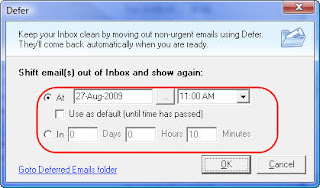
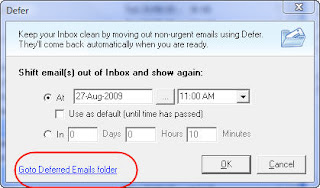
QuickFile for Outlook Tip: Viewing Inbox emails only when you need them


Wednesday, July 15, 2009
How to Write Emails that Get FASTER Responses to ALL your concerns/questions
Do you find that when you send out emails, people only send partial responses? Here is a easy tip that makes it easier for the respondent to address all your concerns AND gets them to address at least some of your issues faster AND also makes it easy for you to follow up.
The Secret… make one email about one topic/project only.
Why does it make it easier to get a response to all your questions?
Most people use their emails like a To-Do list. It feels great to knock a few things off that ever-growing list. So if you send an email with too many things in it, the respondent will reply and deal with either the most important or (more likely) the easiest questions. The email is then considered dealt with… they know you’ll email him again if you really need answers to the other questions.
Why does it get them to respond to at least some of your questions faster?
Other people will look at your email and think… It will take time to answer all those questions… I’ll respond later. They may procrastinate for a long time before getting back to you.
On the other hand, if you had separate emails for each topic… you probably would have received a response to things that could have been answered immediately. (We all want to knock things off that To-Do list)
Benefit for the person you are writing to: It gives them a much better way of managing To-Do items that relate to you.
Why is it easier to follow up?
If you have a separate email for each topic and use Outlook flags, Tasks or some other method of knowing what still needs to be followed up on… it’s easier to mark topics as completed as you get responses… and you know exactly what you still need to follow up on.
It’s also easier to resend an email that has not been responded to at all (than to forward and modify a partially responded-to email)
Try out this simple tip… you’ll find a big change in responses. I have.
Do you have your own ways of getting faster and complete responses? Tell me what you think by leaving a comment on the blog.
Before I forget… we have a great productivity booster announcement next week… if you’re not part of our email newsletter (which is different from the blog newsletter), sign up at www.standss.com
Wednesday, May 27, 2009
Why and how you may want to turn off Auto-Complete?
I like the Auto-Complete feature in Outlook. I like typing a few characters of an email address and then having Outlook give me a quick list to pick from based on the characters that I typed in. It saves me a lot of time… but it can also create problems too.
For example… a few days ago I needed to send an email to Anand Kumar… I was in a rush and accidentally picked and sent the email to Anand Singh instead… luckily for me the email did not contain any confidential information.
On the other hand, this lady wasn't so lucky...
The emailer higlighted in Lilly’s $1 Billion E-Mailstrom accidentally sent a confidential memo to a New York Times reporter (whose name was very similar to that of the intended recipient)… and they published a story on it.
http://www.portfolio.com/news-markets/top-5/2008/02/05/Eli-Lilly-E-Mail-to-New-York-Times
I have to admit… this lady had the absolute WORST luck… it's bad enough to send an email to the wrong person but what are the chances that the one email you mis-send has highly confidential information… and it ends up in the Inbox of a New York Times news reporter.
How to avoid this mistake… IF it is important enough to you.
I like Auto-Complete and I don't think the contents of most of my emails need me to take any drastic steps. However if you deal with a lot of confidential information then you may want to turn off Auto-Complete in Outlook.
On the Outlook menu, click Tools-Options.
Click the Email Options button.
Click the Advanced Email Options button.
Clear the tick next to Suggest names while completing To, CC, and BCC fields.
If you're really paranoid you may also want to clear the tick next to Automatic Name Checking.
Click OK. Click OK. Click OK.
Like I said earlier… my emails don't contain any highly confidential information and I'm happy to leave these settings on. Your situation may be different…
If you want an additional level of protection, you may also want to check out Use SendGuard for Outlook to avoid sending emails to the wrong people.
Do you have your own horror stories of mis-sent emails that you can share. Leave a comment on the blog.
Related Posts:
Outlook Auto-Complete Tips
Use SendGuard for Outlook to avoid sending emails to the Wrong People
Posted by
Sanjay Singh
at
5:14 PM
0
comments
Labels: Email, Outlook Tip, Productivity, SendGuard 4Outlook
Wednesday, May 13, 2009
QuickFile for Outlook Hidden Feature: Favourites
This tip is for you if you are one of the thousands of users of the latest version of our email filing tool (QuickFile for Outlook). QuickFile has a hidden feature called Favourites that users love… once they discover it.
What are QuickFile Favourites?
Whenever you need to file an email, QuickFile displays a list of recommended folders related to the sender/recipient of that particular email.
QuickFile can also display FAVOURITE folders on the same screen. Favourite folders are displayed for all emails irrespective of the sender or recipient of the email. I use Favourites for folders that I have created for Receipts, Jokes, Read later etc.
To add folders to Favourites in QuickFile.
1. Select any email in your Inbox and click the QuickFile button.
2. Right-Click over empty white space on the list as shown below and then click Add Shortcut.
3. Tick the folders you wish to add as favourites.
4. Select Favourites under “Who are the shortcuts for” as shown in the screen above and click OK.
Feedback from users regarding the Favourites feature has been very positive. Tell us what you think by leaving a comment on the blog.
Related Articles
Hidden Features in QuickFile
http://outlook4business.blogspot.com/2009/04/hidden-features-in-quickfile.html
QuickFile: How to file your emails without interrupting your work
http://outlook4business.blogspot.com/2009/04/quickfile-how-to-file-your-emails.html
Posted by
Sanjay Singh
at
7:51 PM
0
comments
Labels: Addins4Outlook, Email, Outlook Tip, Productivity, QuickFile
Thursday, April 23, 2009
Hidden Features in QuickFile
We have literally had hundreds of emails from QuickFile users telling us how great they find the new release… and we’ve also had quite a few emails from users wanting new features added on.
Before we go any further… If you haven’t had a look at QuickFile yet, take a look at this video now. Even if you have tried QuickFile in the past, you owe it to yourself to at least see how the new version of QuickFile makes it possible to file your emails without stopping your work.
View QuickFile for Outlook Video
Back to the hidden features of QuickFile…
THE GOOD NEWS… MOST of the features requested by users are already in the current version. They’re just turned off by default… we wanted to keep the program as clean as possible for new users.
HERE’S A LIST OF SOME HIDDEN FEATURES
File Original with Reply: Chances are that when you reply to an email, you would like both the reply and the original filed in the same folder. When you reply to an email QuickFile can automatically file your original to the same folder as your reply.
Reply to an existing email and click Send so that QuickFile’s Send&File screen is displayed.
Click the Show Option hyperlink (bottom right corner of screen)
Tick the box labelled File original Received Email with Sent Email.
Click Send & File.
You can also have this box ticked by default using the Settings screen
Go to your Inbox and from the QuickFile toolbar, click More -> Settings (to display the Settings screen).
Create Tasks or Appointments from Emails: This feature is available in the trial and PRO versions of QuickFile. Extra buttons (Quick-Task and Quick-Appointment) have been added to your toolbar to allow this.
To display the buttons…
Go to your Inbox from the QuickFile toolbar and click More -> Settings (to display the Settings screen)
Click on the View tab.
Tick the boxes labelled Quick-Task and Quick-Appointment.
Click OK
Use the One-Click button to Copy (instead of move) and to go to a folder: The One-Click button has got a lot of praise from users. Here’s a few extra things you can do with it.
Click on the One Click button: Moves selected email to one-click folder
Press SHIFT and Click on the One Click button: Copies selected email to one-click folder
Press CTRL and Click on the One Click button: Opens up the one-click folder
Send&File the actual email (instead of filing a copy): We’ve setup QuickFile so that when you send and file, a copy of the email is filed and another copy remains in the Sent Items folder. This was a feature DEMANDED by many users… many users like to have a copy of all Sent emails in the Sent Items folder so they can quickly refer to it to fill in timesheets etc. BUT…
You can change the default so that your actual email gets filed out of the Sent Items folder.
Go to your Inbox and from the QuickFile toolbar, click More -> Settings (to display the Settings screen)
Select File/Move Original email to folder under When Using Send&File Button.
QuickFile has many more hidden features you can turn on and off. I hope this small list helps you get started.
Related Posts
QuickFile: How to file your emails without interrupting your work.
Posted by
Sanjay Singh
at
7:53 PM
0
comments
Labels: Addins4Outlook, Email, Outlook Tip, Productivity, QuickFile
Wednesday, April 8, 2009
Don't let others shift their email overload to you!
"Don't allow people to believe they have solved a problem by
emailing you. It is still their problem" (Dirk)
Last week we released a new report and I asked for comments from
readers. Dirk was one of the many readers who wrote back.
Thank you all for your time and support.
It is really great to know that you found the report useful.
I will be releasing a follow-up report early next week based on all
your fantastic feedback but I felt Dirk's comment needed to be
shared immediately :)
If you still haven't read the first report, you can download it from:
8 Simple Tips for E-Mail Management in Microsoft Outlook
The follow-up report discussing your comments and ideas will be out
in a few days.
Till then... have a Happy Easter Weekend
Regards
Sanjay
Monday, April 6, 2009
Special Report: 8 Simple Tips for E-Mail Management in Microsoft Outlook
We have just completed our report titled:
8 SIMPLE TIPS FOR E-MAIL MANAGEMENT IN MICROSOFT OUTLOOK
My Inbox has been FLOODED with emails from readers who wanted to get their hands on the report... which ironically is one of the "problems" discussed in it.
This report is the result of many hours of my own research as well as a major contribution from many of you. Thank You!
Download your copy of our special report now:
http://www.standss.com/t/0904/report.asp
Regards
Sanjay
PS: Download and read the report TODAY. We’re planning a Part 2 in the next few days.
http://www.standss.com/t/0904/report.asp
Wednesday, March 4, 2009
QUICK & EASY EMAIL SORTING
Do you have folders with huge lists of emails in them? Here is a quick easy way to find particular emails by sorting your emails anyway you want.
Go to your Inbox (or any other email folder that you wish to sort). Do you see a list of column titles at the top (with labels like From, Subject, Received)

To sort by the Received date, click on the Received column title (as shown above).
You will notice a little arrow next to the Received column title in the screen above. This indicates that the email list is sorted by the Received column.
The arrow pointing downward means that the list is sort in descending order i.e. the newest emails are at the top of the list and the oldest are at the bottom (for other fields it means that it will sort from Z to A).
The arrow pointing upward means that the list is sort in ascending order i.e. the oldest emails are at the top of the list and the newest are at the bottom (for other fields it means that it will sort from A to Z).
To make a list sort by a different column, simply click on the title of the column you wish to sort by.
To change the way a list is sorted (i.e. change from ascending to descending), click on the title of the column again.
In summary… to sort, click on the column title!
If you find this post useful, please leave a comment on the blog.
Other Articles of Interest:
Tuesday, February 24, 2009
Speed Reading with the Outlook Reading Pane
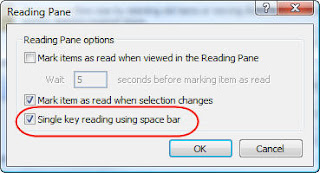
Now when you are reading emails in Outlook via the Reading Pane, clicking the Space Bar will shift you from one email to the next.
See More of Your Email when using the Reading Pane
Monday, October 20, 2008
Email Horror Stories (CNN)
CNN today ran the story Experts reveal e-mail nightmares, safety tips. They have some funny (because they happened to someone else) horror stories of how emails sent to the wrong person have caused embarrassment and even big financial loss.
In a recent online survey conducted by AOL, 32 percent of the 4,000 respondents have at one time or another mistakenly forwarded an e-mail to an unintended recipient. And often, it's something NOT so nice.
In the CNN article, Roger Matus, keeper of the blog Death By Email, has some good MANUAL TIPS to avoid this mistake including:
- Forget that the Reply-to-All button exists (or see our automated solution later)
- Type out the person's full name when addressing your e-mail. If you type just the first few letters and let your e-mail program fill out the rest based on your address book, it could easily misroute your message without you realizing it.
The manual methods will not work for most of us.
We have created an AUTOMATED SOLUTION that provides protection from this mistake and more. SendGuard for Outlook will:
1. Warn you whenever you click Reply-to-All (to avoid those accidental clicks)
2. Allow you to delay emails or emails to selected addresses by a preset time (so that you have some time to change your mind)
3. Get confirmation before Outlook sends out emails to all or selected email addresses.
4. Protect you from numerous other mistakes such as missing attachments, blank subject lines, incorrect subject lines, incorrect sending accounts and more.
Click here to get more information on SendGuard.
We also have a $10 discount on SendGuard until the end of Wednesday 22nd October as part of another update promotion.
Click here to purchase SendGuard at the discounted price before 22nd October. The page is for an UPGRADE OFFER we made to our customers so the text is not directly related to this post... simply scroll down to the ORDER link which has the $10 discount applied to it.
Wednesday, October 15, 2008
Better Email Subject Lines in Outlook
A few days ago I asked for comments on Misleading Email Subject Lines. Firstly let me say I am truly grateful for the large number of responses I received both on the blog and via email.
I have collated your questions, answers and suggestions below in Question and Answer format.
Q: How can you change the subject line of emails that you have received?
The answer to this took me by surprise as well. Simply open any email that you have sent or received, go to the subject line and type in whatever you want. I know that the Subject is read-only but it’s not. Close the email to save the changes.
You can use this technique to change the Subjects of emails that you have received so that the Subject line makes sense when you refer to it in the future.
Q:How can you change the subject line of emails that have already been sent?
Same as you do for emails you have received. Just open the email, go to the Subject Line (which looks read-only but really isn’t), type in your changes and close the email. Easy!
Q: How about email messages that are entirely in the Subject line – what does
You can write short emails that are entirely in the Subject line. The accepted practice if you do is to end the Subject with
Subject: Please call and confirm attendance to Q4 meeting
The reader than (maybe) knows that he doesn’t need to open the email.
Q: What do things such as RR:, AR, FYI, NH …
You may sometimes find that people add a few letters to the front of their Subject lines that don’t seem to make sense. For example:
Subject: RR: Can you confirm attendance to Q4 meeting
The more common ones and what they mean...
RR: Response Requested
AR: Action Required
FYI: For Your Information
NH: Need Help
It helps the recipient know why they are receiving the email. Technically speaking you should get rid of the RR, FYI etc when you reply to the email
ANNOUNCEMENT (regarding an upcoming announcement)
Within the next two days I am hoping to announce a simple solution to stop you from making mistakes such as ones discussed here (e.g. Misleading Subjects). I’ll let you know when I am ready.
Till then, please leave a comment on the blog.
Monday, October 13, 2008
Misleading & Inaccurate Subjects on Emails
Most of us have the SAME PROBLEMS when it comes to email.
In August this year I asked for comments from you all before releasing a report on Email Overload. I was overwhelmed by your response and was not able to deal with all the issues covered. Over the next few months I hope to cover some of the problems you identified.
Today I want to look at the topic of MISLEADING or INACCURATE SUBJECTS. Does this sound familiar…
- You send a message to someone with the subject "Updating your PC this Friday".
- They reply to that and all is well and good.
- Two weeks later you get an email with the subject "RE: Updating your PC this Friday".
Have you been guilty of the above? I know I have.
We are doing some research on this and I will write more about this later. In the meantime…
I'd love to hear your thoughts… leave a comment on the blog.
Sunday, August 24, 2008
Fine-Tuning Spam Filtering in Outlook
How-to minimize the number of work emails that get caught by Outlook's spam folder?
Here are some tips to fine-tune spam filtering in Outlook … my focus is on keeping work emails out of the junk folder and … if they still end up there, how to get Outlook to highlight potential work emails amongst all that junk.
This video is a result of feedback I received from reader to the question … what are the one or two greatest obstacles to getting through your emails.
I am almost finished compiling the feedback and will release a FREE report on some solutions to overcoming email overload in the next few days. If you haven't done so already, register here to get notified when the report is released.