Wednesday, April 7, 2010

Outlook4Business Blog has moved + New Outlook Articles (on New Blog)

Our Blog has moved! We have been writing this blog for more than 2 years now and decided that it was time to move it away from Blogger to our OWN website.

You can see the new Blog at:

(You will need to subscribe to the RSS feed on the new blog to get future blog posts)

The blog has already been active for a little over two weeks. We are aiming to post 3 articles every week. The articles we have posted already include:

MARKETING WITH OUTLOOK

OUTLOOK TIPS
ADDIN TIPS
SUBSCRIBING TO THE BLOG, FACEBOOK AND TWITTER

You can subscribe to our Blog, Follow us on Twitter and become a fan of our Facebook Page by using the following links:

FACEBOOK: Become a Fan

I hope you find the articles on the new blog, our Twitter feeds and our Facebook Page useful.

Till next time... Have a Better Outlook.

Regards
Sanjay Singh

Wednesday, February 24, 2010

Showing the number of Unread Emails in an Outlook folder AND it’s subfolders

In Outlook, if a folder has any unread emails, then the folder is bold and the number of unread emails is written in brackets BUT… this only reflects the folder itself… what about emails in its subfolders?

This can be a problem if you have (for instance) a folder called Clients and subfolders under it for each client. The Clients folder will not go bold or reflect the number of unread emails in the individual client folders.

The solution to this is to use Search Folders.

If you are not sure what Search Folders are then I recommend that you scroll down and read the section titled What are Search Folders first.

How to create a Search folder to show folder and subfolder contents
  • Go to your Inbox.
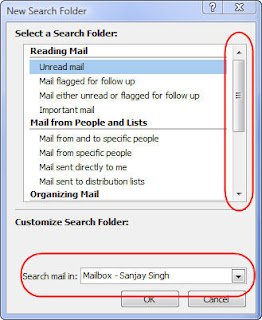
  • Click File-New-Search Folder
If you are using more than one Outlook data file (PST or Exchange), make sure the relevant data file is selected for “Search mail in”.

  • Scroll down the list and select Create a Custom Search Folder.
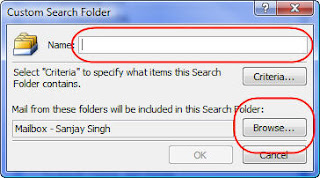
  • Click Choose... to display the Custom Search Folder Screen.
  • Enter a suitable name (e.g. All Client Folders)
  • Click the Browse Button.
  • Untick the main data folder from the top and just select the folder that you are interested in. Make sure that Search subfolders is ticked.
  • Click Ok, click OK and click OK again to return to your Inbox.
The new Search Folder will be added to your Outlook.

This will show you all emails in your selected folders and its subfolders. You can treat it like any “real folder” in Outlook now e.g. you can change the view to show only unread email if you want.

What are Search Folders?

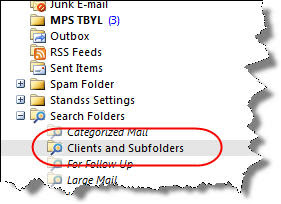
Search folders are NOT “real” Outlook folders. Instead they allow you to define a search on your Outlook data and then display the results back in what looks like a normal Outlook folder.

The folder will be displayed under a folder called Search Folders (as shown above).

Cool Thing #1: Once you create a Search Folder, the search is saved for you. To do the same Search in the future, you simply click on the folder representing the search which brings us to Cool Thing #2.

Cool Thing #2: You can actually treat the Search Folder like any real folder in Outlook e.g. you can apply views, change displayed columns etc.

Do you use Search Folders to solve other problems? Let us know by leaving a comment on the blog.

Regards,
Sanjay Singh

Standss/Addins4Outlook is now a Microsoft Gold Certified Partner

It has taken a lot of work by the team and help from many of you. We are very excited to announce that …. We are now a Microsoft GOLD Certified Partner!

Why did we bother with all the extra work and what does it mean to our customers?

We have an excellent relationship with most of our readers. You trust our team and our products… I believe that the entire team at Standss has worked hard to earn that trust… and we will never take it for granted… we will do our best to ALWAYS provide the kind of products and support that you need.

But.. our website also gets visited by thousands of new Outlook users every month… users who are not familiar with us yet.

These new visitors result in both sales and requests for more information. Often these requests for information are from large companies and although they like our products, they sometimes have difficulty in convincing management to invest in our software.

Why? We think it may be our location. We love living and working in Fiji… but we do understand that prospective customers, at least who are not familiar with us, may have concerns about the quality of support that we will be able to provide… from Fiji.

We have worked hard to gain our Microsoft Gold Certified Partner status… as one more way of reassuring our existing and future customers that we provide WORLD-CLASS software and support to thousands of customers around the world.

We look forward to serving you with even better products and service in the future.

We’d love to hear any comments from readers of the blog…

(To celebrate, existing customers have been sent a special 10% discount coupon to use before 3rd March 2010. Discount is only for the purchase of new or additional licenses)

Regards,
Sanjay Singh

Thursday, January 14, 2010

How I Personally Use QuickFile to Be MUCH MORE PRODUCTIVE with Emails

14 emails in my Inbox. As promised, here is a list of ways in which I use QuickFile for Outlook to keep my Inbox clean and my emails filed neatly into dedicated project folders.

If you want to purchase QuickFile PRO after reading this… Newsletter readers have been emailed a special $10 discount coupon that is valid till 18-Jan-2010.

Is this article unbiased? Certainly NOT! We are the developers of QuickFile… though many of the features were suggested by users. But..

This article does show you exactly how I PERSONALLY USE QuickFile on a daily basis… I hope you find ideas in it that will help you take control of your emails.

I am able to file 90% of the emails at the click of a button

QuickFile adds a toolbar inside Outlook. Whenever I select an email, QuickFile changes one of the buttons to the name of the folder I last used to file a similar email… most times the email needs to go into the same folder. One click and the email is moved out of my Inbox.

What I like:
  1. I am actually filing my emails because I don’t have to hunt through a tree of folders.. one click is so much faster.
  2. My Inbox doesn’t feel like a list of endless tasks because it only contains emails that still need my attention.
A COPY of my Sent Emails are automatically filed to the correct folder

QuickFile prompts me for a folder every time I send out an email. The prompt contains a list of folders where I am most likely to file the email…. Double-click and the email is automatically filed to the correct folder after it is sent.

(The prompt can be turned off if you prefer to bring it up only when you want by clicking Send&File instead of Send)

What I like:
  1. Without this, emails in my Sent Items folder were NEVER filed. I don’t look at Sent Items as often as my Inbox and it’s just too easy to forget.
  2. QuickFile can either move the original email or file a copy from the Sent Items folder. The copy feature was implemented as a result of user DEMANDS and I really find this useful. A copy gets filed to the correct folder and I still have a copy in my Sent Items for quick reference. Many users tell me that they also use the Sent Items emails for filling in timesheets.
I don’t let Newsletters distract me

I subscribe to many different newsletter emails. Most of these newsletters do not need my urgent attention… they do not need to be added to my list of things to do.

QuickFile lets me treat any email in my Inbox as a newsletter at the click of a button. After that any email from that email address automatically gets moved to a folder dedicated to Newsletters, which I then read at my convenience.

What I like about this:
  1. My Inbox does not get cluttered by newsletters… there is less stress each time I look at my Inbox.
  2. I’m not distracted from my real work by an email with an interesting topic
  3. QuickFile reminds me once a day to look at my newsletters with an email in my Inbox… I do a quick scan to make sure that I am not missing out on anything time-sensitive.
  4. Many emails that I was spending (wasting) a lot of time reading no longer seem important… now that they’re not in my Inbox, I don’t feel as compelled to read stuff that I won’t actually use.
I (defer and then) deal with non-urgent emails in batches

Many productivity gurus recommend that you don’t deal with emails first thing in the morning but… we’re in a different time zone from many of our customers… I need to reply to them first thing to ensure that we are able to communicate while we are still both at work.

I start from my Inbox and deal with each in it. If it’s urgent I deal with it there and then.

Otherwise, I use QuickFile to defer it to 11 am… a time I have set aside for email processing. QuickFile moves the email out of my Inbox and then brings it back at 11 am. (QuickFile can defer each email to a different time of your choosing).

What I like:
  1. My Inbox does not contain emails that I have decided not to work on now. This keeps me focussed only on what I need to think about.
  2. The email automatically appears at a time of my choosing.
  3. Batch Processing emails is actually a much more productive way of dealing with emails instead of getting distracted by emails 50 times a day.
I am able to find Email Folders by typing any part of the folder name

I have many folders of several levels inside Outlook. Finding the right folder to file or retrieve an email can take a long time… OK… it takes less than 10 seconds but it feels like a long time.

QuickFile adds a Find&Goto Folder button to the Outlook toolbar. To find a folder all I need to do is click on the button and type a few characters from anywhere in the name of the folder.

QuickFile shows me all matching folders and I double-click to go to the correct folder. Easy!

What I like:
  1. I don’t have to remember where the folder is or it’s exact name.. or even the start of the folder name. QuickFile will do a find anywhere in your Outlook file and based on any part of the folder name
  2. It makes answering queries that requires reference to old emails much much faster.
That covers my favourite ways in which QuickFile makes me productive.

If you’re not using QuickFile yet… you owe it to yourself to try it out. There is a fully functional 30-day trial on our website. Newsletter readers have also been emailed a special $10 discount coupon that is valid till 18-Jan-2010.


If you’ve never used QuickFile before, you may want to watch the Video on the above page first.

If you’re using QuickFile already.. I would love to hear ways in which you are benefiting from QuickFile. Please leave a comment on the blog.

Monday, January 11, 2010

My Resolution: How to Declutter My Outlook in 2010

What’s your New Years Resolution? After failing for the last few years, I’m giving up on “losing weight this year”.

Instead my goal this year is to DECLUTTER… and I’ve already made a start with my Inbox… at the moment I have a grand total of 10 emails in my Inbox… everything else has been neatly filed away.

So how did I get my Inbox so clean… I practiced what I preached!

Last year we released an e-book titled:
8 SIMPLE TIPS FOR E-MAIL MANAGEMENT IN MICROSOFT OUTLOOK

The FREE e-book provides step-by-step instructions for a VERY SIMPLE email management system that will work for anyone who works with clients, projects or cases.

You can download a copy of the e-book from:

There is also a SECOND REPORT at the above link BASED ON FEEDBACK from readers of the first report plus their own ideas to improve the system.

ALL YOU NEED IS OUTLOOK… you don’t need any extra software to setup and use the email management system described in the two reports.

Warning… I am going to do a follow-up article later in the week on how I use our own email filing add-in QuickFile for Outlook to further streamline this system… you don’t have to use QuickFile but it does make it easier to keep things filed.

Whether you want to use QuickFile or not... there are tips in the report that will help you both organize and secure your email data.

Till next time, have a better Outlook

Regards,
Sanjay Singh

P.S. If you are stressed by email overwhelm, email overload (it’s amazing how many words there are for stress), then download your copy of the reports today:

Wednesday, December 16, 2009

Images for Your Christmas Emails and Newsletters

We received a great response to our post on sending out invitations, greetings and newsletters via email (Outlook) and fax. If you haven't seen it yet… Here's a link to the Post.

A few readers also asked if there were any good sources for Christmas related images. Rather than listing any sources… Just do a search for FREE CHRISTMAS IMAGES in Google and you will find hundreds of sources.

Before you use the images, check the website to see if they have any conditions for use of their images.

How to download images from websites
The basic steps for downloading and using images from most websites are…

  • Right-click on a image > Save As...
  • On the pop-up screen, provide a name for the image and the location where you would like to save it.
  • Click Save.
How to use downloaded images in your emails
  • Create a new email
  • Place your cursor where you would like the image to be placed
  • Select Insert > Picture...
  • Click on the Browse... button and locate the image that you would like to use.
  • Click OK
I hope you found this article useful… and remember if you need to send out many invites, greetings or newsletters the easiest way is EmailMerge for Outlook.

$10 from all purchases in December will go to our Children's Charity projects.

Tuesday, December 8, 2009

Holiday Tips, Thank You & Children’s Project

The team has had some lively debate over this email… and I’ve revised its contents twice. We wanted to make sure that we were able to convey both our enthusiasm and appreciation without sounding exploitive. So here goes…

Seasons Greetings to all our readers. This week I'd like to share some tips on using Outlook (or Word) to send out invitations, greetings and news (which we all need to do at this time of the year).

I'd also like to THANK YOU and share how this year YOUR purchases have enabled us to help many children here in Fiji.

If you'd like to go straight to the tips section, you can scroll to the end of the email… but I hope you'll take few minutes to read the following.

HELPING CHILDREN

For those of you who do not know it, our team is based in Fiji. Fiji is still a developing country and although we are blessed in many ways, there are still a lot of people who need help.

Throughout the year the whole team at Standss tries to give time and a portion of our income to community projects here in Fiji.

The charity that we work closest with is Save the Children Fiji.

This year we worked with them on several projects including a sizeable donation to their relief efforts for children affected by severe flooding in the early part of the year. This project helped provide bus fares, school lunches, uniforms and books to THOUSANDS of children in Fiji… children who otherwise may have had to drop out of the school system.

We will continue to work with Save the Children in 2010 and have already started work on a new project…

BOOKS FOR THE CHILDRENS HOSPITAL

Early this year my 4 year old son (Nirav) had to be hospitalized due to flu-related dehydration (he lost 5% of his body weight within a few hours between visits to the doctor). We were told that he needed to be put on drips and the only hospital that could do that (because of his young age) was the Children's Ward at the public hospital.

As I mentioned previously… Fiji is still a developing country. With the limited resources available, the very-hard working doctors and nurses ensured that my son (and many other children) recovered quickly.

I am very happy to say that my son was home in 2 days.

During his 2-day stay my wife and I kept Nirav entertained by reading books to him that we had got from home. I observed that a few other parents did the same. But…

Many other parents were unable to do so. Some had come from far away and others may not have had the resources to purchase books.

After my son was discharged I hoped that I would get the chance to do something for the hospital. (I am a little ashamed that I did not act sooner.. when the sense of gratitude was strongest)

Several months ago I was fortunate to meet a senior Doctor at the Ministry of Health and we discussed the possibility of setting up reading stations in the children's ward… from which parents could pick books (at no cost) to keep their children occupied and entertained as they get better.

I'm very excited to report that the project has been approved and I am meeting with senior hospital staff later today to work out how many books, shelves etc are needed.

At the minimum we plan to…

• Get several nicely colored bookshelves
• Stock the book-shelves with the appropriate number of books for children from 6 months to 10 years old
• Restock the books on a monthly basis (damaged books and books that have been taken away by children)

We will request parents to look after books and leave them for the enjoyment of other children… but if a few books find happy homes outside the hospital… that is still OK.

It is the holiday season… and we are aiming to get stage one of the project implemented BEFORE CHRISTMAS.

At this stage this project will be 100% financed by our company. This has only been made possible through the support of our customers and we'd like to say…

THANK YOU… IT IS ONLY WITH YOUR SUPPORT THAT WE ARE ABLE TO BRING JOY TO THE CHILDREN OF OUR COUNTRY.

I will keep you informed of progress on this project with more details in our Outlook Tips newsletters next year.

WHAT CAN YOU DO TO SUPPORT OUR CHARITY EFFORTS

This year….as a special Christmas Project, we will set aside $10 from each and every sale in December for our 2009-2010 Charity efforts.

READ the Tips section below… if our software can help you with your Christmas emails or faxes… please ACT NOW!

You don't need to do anything more… just continue to support our company by using our products. And if you don't like something… please let us know.

OUTLOOK TIP: HOW TO SEND OUT INVITATIONS, GREETINGS ETC

The holiday season is the time of the year when we often need to send out "mass mail" i.e. copies of the same letter, fax or email to many people… things like invitations to parties, holiday greetings or marketing/sales news.

We have put together a collection of tips on our website that lets you automate most of this using Outlook and/or Word.

Some of the tips use our own products (EmailMerge for Outlook and Fax for Word) and others need nothing more than plain old Outlook or Word.

Take a look now:

(If you decide on the easy way i.e. using our software, we will use $10 from every sale to help with our charity efforts for children in Fiji)

Thank you again for your continued support and we wish you all a very Merry Christmas.

Sending out Invites, Greetings & Newsletters via Email, Fax or Post

It’s almost Christmas… it’s the time of the year when we need to send out invitations, greetings and newsletters to friends and clients.

Depending on your contact list, the best way to contact your friends this year maybe using email, fax or post/hand delivery.

Most of these mailing can be considered “mass mailing” i.e. we want to send copies of the same mail to everyone… possibly customized with their name and address at most.

Microsoft Outlook and Word have some built-in features that automate this process for you. In addition we have built our own tools to further speed up and simplify the process for you.

In this post I’ll discuss both the built in free ways as well as our own addins.

How to Email out Invites, Greetings and Newsletters.

I am going to start with what I consider to be the easiest, fastest and most powerful way of doing this… our own EmailMerge PRO for Outlook.


We recently wrote an article in Outlook Power which takes you through EmailMerge step-by-step.


$10 from each purchase in December will go towards our 2010 Children’s Hospital Project.

Can you do this without using our addin? Outlook can use Word to do this but it’s time consuming and not as powerful. Here’s a link to a tutorial.

How to Fax out Invites, Greetings and Newsletters.

Despite what many people will have you believe, Faxing is not dead.

In fact in terms of deliverability, it can beat email - there is almost no chance that your fax won't get delivered because of an over-zealous spam filter.

You can use Microsoft Word and the free fax printer that comes with Windows 2000/XP/Vista/7 to send out personalized faxes to your customers this year.

The Bad News: Windows Fax and MS Word don't talk easily to each other out of the box.
The Good News: Fax4Word allows you to fax merge straight from Word to the Windows Fax printer.


$10 from each purchase in December will go towards our 2010 Children’s Hospital Project.

How to Print Letters and Envelopes for Posting and Hand Delivery

Even if you will be sending paper based mail this year, technology can help you.

Here are step-by-step instructions to:


I hope you find the above information helpful in staying in touch with friends and family this year.

Thank you again for supporting our 2010 Charity Project.

Tuesday, October 20, 2009

Big Update to QuickFile

We are very excited to announce the release of QuickFile Version 4.1.52. This update includes both NEW FEATURES and BUG FIXES.

This is a FREE UPDATE for registered users of QuickFile 4.x.


The full list of changes is listed later in this post but I'd like to highlight two new features that many users would appreciate.

File Emails sent using BlackBerries, Iphones, Outlook Web Access (OWA) etc

The number of QuickFile users in large companies are growing rapidly. Users in these companies often send out emails from outside Outlook using BlackBerries, OWA etc. These emails are automatically synchronized to the users Sent Items folder inside Outlook.

QuickFile 4.1.52 (PRO Version) lets you display these "unfiled Sent Item emails" at the click of a button and then file them quickly using QuickFile recommended folders.

We have prepared a whitepaper that lets you get started with this feature that you can download using the link below.


You can also see other Whitepapers that we have created at:

File Emails sent using SalesForce.com, Sent on Behalf Of others etc
If you subscribe to any mailing lists or newsletters on the web, chances are that you are receiving emails that are sent using third party services such as SalesForce.Com. The sender of these emails is usually someone like bounce@infusionmail.com on behalf of a@b.com (where a@b.com is the email of the actual person).

The problem is that bounce@infusionmail.com may be sending out emails on behalf of many unrelated people thereby making filing difficult based on the Sender's address.

To get around this problem, QuickFile 4.1.52 now defaults to using the on-behalf-of-email address if one exists.

Full list of Updates in QuickFile 4.1.52
  • NEW! (PRO Version) Process Sent Items for unfiled emails sent using Blackberry Phones, Outlook Web Access, etc.
  • Emails that are sent from outside Outlook using Outlook Web Access or BlackBerry (synchronized with Outlook) does not get filed using Send&File. This new feature now allows you to process your Sent Items to highlight these unfiled emails and also provides with an easy step to file it at the same time.
  • NEW! NetDocuments icons for the folder
    QuickFile now displays the NetDocuments folder with the NetDocuments icon on it to make it easy for users to distinguish it from normal folders.
  • NEW! Supports SendTo Mail recipient
    Right-Click on a file and SendTo -> Mail Receipient. Now QuickFile Send&File is supported when emailing using this option.
  • NEW! QuickFile also supports filing on the On behalf Email Address
    When an email is sent on behalf of someone then QuickFile will file that email with respect to the person it was sent on behalf of. Previously QuickFile did filing with respect to the person who sent the email.
  • Bug Fix: Settings screen: In Data files tab, if selected Stores is selected, open settings screen click OK, all the selected stores becomes un-ticked.
  • Bug Fix: Received Date changed for emails when filing to a public folder
  • Bug Fix: Go to Tasks -> View by Categories then sort by subject. A selection change error occurred
  • Bug Fix: QuickFile ->search for something that does not exist in choose another folder -> click new folder button -> now click cancel on the new folder form -> Runtime error 5 occurs and QuickFile crashes
  • Bug Fix: Use QuickFile to file a PostItem. the recent folder is updated but the shortcut does not get updated.
  • Bug Fix: When you do QuickFile on an email, then change the email address from the drop-down on the QuickFile form and file the email. The one-click shortcut is updated on the default email address but not on the changed email address that the user picked.

Monday, October 19, 2009

URGENT Email Virus Alert

I have recently been getting a lot of emails with titles similar to:

A new setting file for the ***@*** mailbox has been released.
Or
Microsoft Outlook Notification for the ******.******@*****.be

If you received the above email or anything similar DO NOT CLICK ON THE LINK IN IT!

Turns out that the email contains a link to a file which is a Trojan that disables firewalls, steals sensitive financial data (credit card numbers, online banking login details), makes screen snapshots, downloads additional components, and provides a hacker with the remote access to the compromised system.

I did some quick research on this on the web and found the following links:
http://tinyurl.com/yk64mw3
http://tinyurl.com/yjupkfa

Short Solution… Check with your IT Administrator before downloading any file that claims to change your email settings!

Hope this post helps your computer stay safe.

Wednesday, August 26, 2009

QuickFile for Outlook Tip: Viewing Inbox emails only when you need them

The Inbox works as a To-Do list for most of us. Having too many emails in the Inbox can be overwhelming and distracting. You can use QuickFile PRO's Defer function to make Outlook only show emails when you actually need them.

I can show you how this works with my morning email routine. I don't want emails to take over my day so I have scheduled 10.30 am as my email processing time. BUT some emails need my immediate attention... as soon as I get into the office.

Here's what I do...

I download my emails when I get into the office. I then step through the emails one by one.

If an email needs urgent attention (sales emails), I respond. If it is something that someone else in my team can respond to, I forward it on.

Otherwise I click the Defer button (which QuickFile PRO adds to Outlook) and defer the email to 10.30 am.

The deferred emails are moved out of my Inbox... so they no longer distract me.

At my preset time of 10.30 am, my deferred emails reappear in my Inbox and I go through them in more detail.

This process (and the Defer button) ensures that urgent matters get attended to... without letting emails completely take over my morning.

How to use the Defer Button

The Defer button is added inside Outlook for you if you install QuickFile PRO for Outlook.

1. Select the email that you want to Defer.
2. Click the Defer button on the QuickFile toolbar (which is displayed inside Outlook)

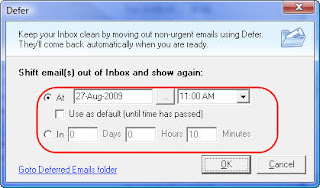
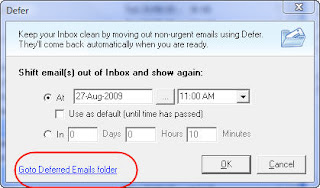
3. Use the screen to enter when you want to see the email again. You can either enter an exact time (e.g. 10 am) or you can choose to look at the email after a set duration (after 30 minutes)
4. Click OK.

The email will be moved out of your Inbox (and will reappear at your set time).

Looking at Deferred Emails (before they come back to the Inbox)

If you need to look at a deferred email before it comes back to the Inbox (maybe you finished your other work or a meeting got changed):

Click the Defer button on the toolbar.

Click the Goto Deferred Emails folder link.

The Defer function has proven to be useful to many QuickFile users. Try it out today.

If you're not a QuickFile user, you can learn more about QuickFile PRO for Outlook here.

Printing Blank Calendars from Outlook

It is almost the end of August... 4 more months to the end of the year. I have been working with my team on planning our main projects for the rest of the year. The discussion process was much easier with a pencil, an eraser and a blank printed calendar for each remaining month of the year.

Here's how you can print out blank monthly calendars from Outlook.

Create a new Calendar Folder
  • Go to your Inbox.
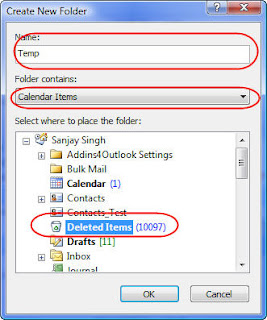
  • Click File-New-Folder to display the New Folder Dialog
  • Enter a suitable name (I used Temp)
  • Change Folder Contains to Calendar Items
  • Select a folder where you want the new Calendar to be created. (I selected the Deleted Items folder. I am only going to use this folder for printing i.e. I am not going to enter any real appointments in it)
View the new Folder
  • On the main menu click Go-Folder List.
  • Select the Folder from where you created it (under Deleted Items for me)
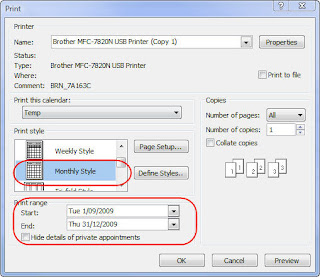
  • Click File-Print
  • Change the Print Style to Monthly
  • Change the Date Range to the range you want to print.
  • Click Preview
  • Click Print
If you created the folder in the Deleted Items folder, you're done. Otherwise you need to delete the Temp calendar folder that you created.

Does this tip work for you. Do you have other better methods. Tell me what you think by leaving a comment on the blog.

Wednesday, July 15, 2009

How to Write Emails that Get FASTER Responses to ALL your concerns/questions

Do you find that when you send out emails, people only send partial responses? Here is a easy tip that makes it easier for the respondent to address all your concerns AND gets them to address at least some of your issues faster AND also makes it easy for you to follow up.

The Secret… make one email about one topic/project only.

Why does it make it easier to get a response to all your questions?

Most people use their emails like a To-Do list. It feels great to knock a few things off that ever-growing list. So if you send an email with too many things in it, the respondent will reply and deal with either the most important or (more likely) the easiest questions. The email is then considered dealt with… they know you’ll email him again if you really need answers to the other questions.

Why does it get them to respond to at least some of your questions faster?

Other people will look at your email and think… It will take time to answer all those questions… I’ll respond later. They may procrastinate for a long time before getting back to you.

On the other hand, if you had separate emails for each topic… you probably would have received a response to things that could have been answered immediately. (We all want to knock things off that To-Do list)

Benefit for the person you are writing to: It gives them a much better way of managing To-Do items that relate to you.

Why is it easier to follow up?

If you have a separate email for each topic and use Outlook flags, Tasks or some other method of knowing what still needs to be followed up on… it’s easier to mark topics as completed as you get responses… and you know exactly what you still need to follow up on.

It’s also easier to resend an email that has not been responded to at all (than to forward and modify a partially responded-to email)

Try out this simple tip… you’ll find a big change in responses. I have.

Do you have your own ways of getting faster and complete responses? Tell me what you think by leaving a comment on the blog.

Before I forget… we have a great productivity booster announcement next week… if you’re not part of our email newsletter (which is different from the blog newsletter), sign up at www.standss.com

Wednesday, July 8, 2009

STOP Getting Spammed by Your Own Email Address

Over the last few weeks I have noticed that spammers have started more and more spam email from YOUR/MY email address. The email is from YOU and also to YOU. Chances are you have your email address white-listed . Here's a little trick I use to stop these emails from getting into my Inbox.

First why would you email yourself…last week I wrote a tip on how you can stay organized by emailing yourself… that could be a reason.

Here's how you can move the spam emails out of your Inbox but still keep the real emails you have emailed yourself.

Decide on a few characters that you will type in the Subject of every email that you send yourself. Keep it simple as you want to be able to type these characters from your BlackBerry etc as well. Use something like QAZ or whatever is easy for you to type.

Any time you send yourself an email type those characters in the Subject e.g. Instead of "Pick Stuff from Supermarket", you would need to type (say) "QAZ Pick Stuff From Supermarket".

Now setup Outlook.

1. Add your own email address to the Safe Senders list in Outlook (this is probably already done)

2. Create a Rule in Outlook so that all emails from your email address get moved to your Junk Mail folder, except those with your special tag in them (QAZ in the example above)

Click Tools - Rules and Alerts
Click New Rule to display the Rules Wizard

Click Move messages from someone to a folder.
Click people or distribution list. Enter all your own email addresses in the From field and click OK.
Click specified folder. Use the screen that comes up to select the Junk E-mail folder and click OK.
Click Next
Click Next

Tick except if the subject contains specific words.
Click Specific Words. Enter the tag (QAZ in example) and click Add. Click OK

Your Rules should look something like the following:

Click Finish.

Now anytime Outlook receives an email from you, it will get moved to the Junk Emails folder, EXCEPT when they have your special tag. EASY!

Does this tip work for you. Do you have other better methods. Tell me what you think by leaving a comment on the blog.

Related Links:
Fine-Tuning Spam Filtering in Outlook

Thursday, June 25, 2009

Make sure the Subject of your email is right for the recipient

There was a big jump in sales for SendGuard over the last month so this month's product tip is for SendGuard.

We did a survey last year to see what annoyed people about emails they received. Number 1 on the list was MISLEADING SUBJECTS… and most of the time the misleading subject was an accident.

First an explanation… a common cause for incorrect Subjects is… I need to send an email to someone who is not in my contact list… I find an email from them and click Reply… I type my new message but I FORGET TO CHANGE THE SUBJECT.

The contents of my new email have absolutely nothing to do with the original Subject!

How does SendGuard protect you from this… anytime you do a reply on an old email, SendGuard will ask you if you want to change the Subject.

How old is an old email… that's up to you. You can decide on how old the email has to be before the prompt will be triggered. SendGuard's default is 28 days and that works well for me.

To turn on this feature and/or to change the number of days:

Go to your Inbox.
Click Tools-Standss-SendGuard-Settings.
Click on the Subject Guard tab.

Change the appropriate settings and click OK.

Do you think this is a useful feature? Let us know by leaving a comment on the blog.

Outlook To Do Lists for the Disorganized: Use Emails instead of Tasks

Need to make sure that you get something done… EMAIL YOURSELF! This works much better for me then putting it on a Task List. Why? Like many people my Inbox acts as my real (or at least more immediate) Task List.

Here are some ways to get the most out of this super easy tip.

1.
Basic Way: Just Email yourself when you need to remember to do something.

2.
Need to follow up on an email that you are sending out to a client: BCC yourself on the email and a copy will end up in your Inbox.

3.
From your BlackBerry or other email-enabled phone: This is my FAVOURITE. It means that I can update my To Do List from anywhere… I'm at the supermarket and remember that I need to call a client on Monday… easy… I create and send a email from my phone… and I can get back to chasing my 4 year old down the candy aisle.

Did you find this tip useful? Do you have your own creative ways of applying this tip. Leave a comment on the blog.

Other blog for this week:
Make sure the Subject of your email is right for the recipient

Wednesday, May 27, 2009

Use SendGuard for Outlook to avoid sending emails to the Wrong People

In my earlier post Why and how you may want to turn off Auto-Complete I wrote about how someone accidentally leaked confidential details to a New York Times reporter. If you deal with a lot of confidential information, here's another way you can make Outlook warn you when you send out emails.

SendGuard for Outlook will prompt you when you send out an email to anyone (or to selected recipients).

Assuming that you actually look at the message, instead of blindly clicking Yes, this simple prompt could save you a lot of embarrassment.

Do I use this feature myself? No.. The majority of the emails I send don't really have confidential information… I still use SendGuard for Reply and Reply/All warnings, missing attachment warnings, Subject Warnings and Clean-Up etc.

Your situation may be different if you send out a lot of confidential emails… still having the message come up for all emails may be a bit annoying.

In that case, you can also configure SendGuard to only prompt you on emails sent to particular people (for example your boss or your most important clients... or news reporters).

Go to your Inbox.
On the main menu, click Tools-Standss-SendGuard-Settings.

Select the Send Confirm tab.
Click Display message for only these email addresses.
Click Add and use the screen that comes up to add an email address. Repeat for as many addresses as you need to add .

Your criteria for choosing people to add to the list should be:

1. People whose emails must be worded correctly (e.g. important clients)
2. People to whom you don't want to accidentally send the wrong emails

Do you find this feature of SendGuard useful? Tell us what you think by leaving a comment.

Related Posts:
Why and how you may want to turn off Auto-Complete?

Why and how you may want to turn off Auto-Complete?

I like the Auto-Complete feature in Outlook. I like typing a few characters of an email address and then having Outlook give me a quick list to pick from based on the characters that I typed in. It saves me a lot of time… but it can also create problems too.

For example… a few days ago I needed to send an email to Anand Kumar… I was in a rush and accidentally picked and sent the email to Anand Singh instead… luckily for me the email did not contain any confidential information.

On the other hand, this lady wasn't so lucky...

The emailer higlighted in Lilly’s $1 Billion E-Mailstrom accidentally sent a confidential memo to a New York Times reporter (whose name was very similar to that of the intended recipient)… and they published a story on it.

http://www.portfolio.com/news-markets/top-5/2008/02/05/Eli-Lilly-E-Mail-to-New-York-Times

I have to admit… this lady had the absolute WORST luck… it's bad enough to send an email to the wrong person but what are the chances that the one email you mis-send has highly confidential information… and it ends up in the Inbox of a New York Times news reporter.

How to avoid this mistake… IF it is important enough to you.

I like Auto-Complete and I don't think the contents of most of my emails need me to take any drastic steps. However if you deal with a lot of confidential information then you may want to turn off Auto-Complete in Outlook.

On the Outlook menu, click Tools-Options.
Click the Email Options button.
Click the Advanced Email Options button.
Clear the tick next to Suggest names while completing To, CC, and BCC fields.
If you're really paranoid you may also want to clear the tick next to Automatic Name Checking.
Click OK. Click OK. Click OK.

Like I said earlier… my emails don't contain any highly confidential information and I'm happy to leave these settings on. Your situation may be different…

If you want an additional level of protection, you may also want to check out Use SendGuard for Outlook to avoid sending emails to the wrong people.

Do you have your own horror stories of mis-sent emails that you can share. Leave a comment on the blog.

Related Posts:
Outlook Auto-Complete Tips
Use SendGuard for Outlook to avoid sending emails to the Wrong People

Wednesday, May 13, 2009

QuickFile for Outlook Hidden Feature: Favourites

This tip is for you if you are one of the thousands of users of the latest version of our email filing tool (QuickFile for Outlook). QuickFile has a hidden feature called Favourites that users love… once they discover it.

What are QuickFile Favourites?

Whenever you need to file an email, QuickFile displays a list of recommended folders related to the sender/recipient of that particular email.

QuickFile can also display FAVOURITE folders on the same screen. Favourite folders are displayed for all emails irrespective of the sender or recipient of the email. I use Favourites for folders that I have created for Receipts, Jokes, Read later etc.

To add folders to Favourites in QuickFile.

1. Select any email in your Inbox and click the QuickFile button.
2. Right-Click over empty white space on the list as shown below and then click Add Shortcut.

3. Tick the folders you wish to add as favourites.

4. Select Favourites under “Who are the shortcuts for” as shown in the screen above and click OK.

Feedback from users regarding the Favourites feature has been very positive. Tell us what you think by leaving a comment on the blog.

Related Articles
Hidden Features in QuickFile
http://outlook4business.blogspot.com/2009/04/hidden-features-in-quickfile.html

QuickFile: How to file your emails without interrupting your work
http://outlook4business.blogspot.com/2009/04/quickfile-how-to-file-your-emails.html

Windows Key Shortcuts you need to know about

Virtually all users have keyboard with the Windows Key on it… yet (from what I have seen), most users do not use it. Here are a few keyboard shortcuts using the Windows Key that will greatly speed up your work.

What is the Windows Key?

The windows key is a key on your keyboard that looks like:

How do I use the Windows Key?

The Windows Key can be used as a FASTER way to do many of the common tasks that you would normally use a mouse for. Here are my Favourites.

[Windows Key]: Display Start menu (same as clicking on Start button)

[Windows Key] + E: Opens up Windows Explorer. This is my favourite.

[Windows Key] + L: Locks you computer (very handy when you need to leave your computer for a few minutes)

[Windows Key] + F: Brings up the Windows Find/Search screen

[Windows Key] + D: Minimizes all windows and show the desktop

[Windows Key] + D: Restores all windows back to where they were

[Windows Key] + M: Minimizes all windows

[Windows Key] + [Shift] + M: Restores all windows

[Windows Key] + [Tab]: Cycles through your open programs (using the Vista Aero interface if you have it enabled)

[Windows Key] + R: Displays the Windows Run dialog

Do you have your own favourite Windows Shortcuts that other readers would be interested in. Please share by leaving a comment on the blog.

Related Articles
Essential(?) Keyboard Shortcuts for Outlook
http://outlook4business.blogspot.com/2008/10/essential-keyboard-shortcuts-for.html

More Outlook Keyboard Shortcuts
http://outlook4business.blogspot.com/2008/10/more-outlook-keyboard-shortcuts.html